

Let’s face it, gaming on mobile has never been perfect. For hardcore gamers, the touchscreen will never be a replacement for game controllers. There are several controllers sold separately that are basically built for mobile gaming and if you’re on Android OS, you’re lucky as you could pick up a controller off the shelf, pair through Bluetooth and start using with your device.
For iOS devices though, this isn’t the case. You can’t just pick up any controller, it has to be an MFi (Made For iPhone)- certified accessory. I have a PlayStation 4 console and it doesn’t really make sense buying another controller for my iPad when I have a Wireless DualShock 4 controller. Whether you own a PS3, a PS4 or a WiiU console, you can use the controller with your iPhone or iPad.
However, you need to jailbreak your device. Don’t worry, we have a comprehensive tutorial on how to jailbreak iOS 10 using Yalu tool. If you’re also running iOS 11, this tutorial explains how to easily jailbreak with or without a computer.
How to use Wireless DualShock 4 controller with your iOS device

As mentioned earlier, you need a jailbroken device to do this. Since non-MFi controllers like the DualShock 4 are not meant to work on iOS, a jailbreak tweak called Controllers For All enables the function. This tweak makes your iPhone or iPad think your non-MFi game controller is actually an MFi controller. This Cydia tweak costs $2.99 and it’s available in the Big Boss repository.
At the moment, it supports the following game controllers:
- PS3 controller
- PS4 controller
- Wii U Pro controller
- iPEGA 9025/9021
- Wamo
- iPEGA 9017
- Regular Keyboard
I used a Wireless DualShock 4 controller with Controllers For All and it worked quite well.
How to use Controllers for All
1. Download and install Controller for All from Cydia.

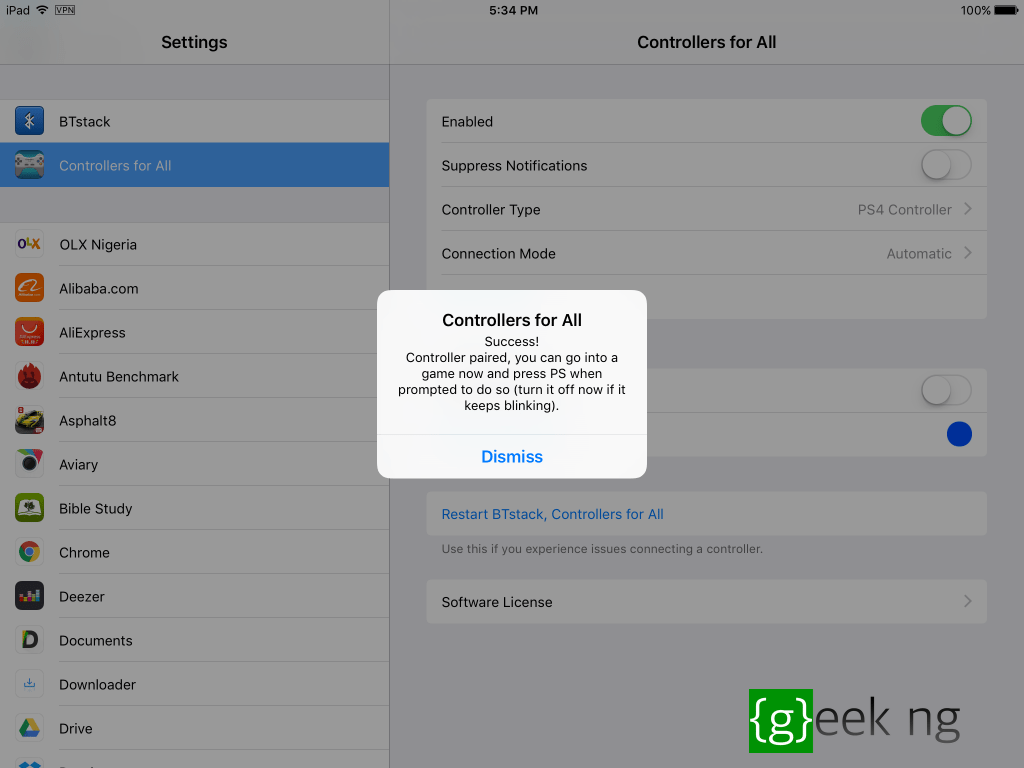
2. After this, head on to Settings > Controllers for All.
3. Go to Controller Type and select the type of controller you have.
4. Make sure the Enabled toggle is turned on and tap Pair Controller.
5. For PS4 Dualshock, you will be prompted to press the PS and share buttons until the controller LED starts blinking.

6. After some seconds, you should get a notice that connection has been established.
Simply launch any game supporting game controllers and you should be prompted to press the PS button. I was able to play Asphalt 8 and GTA: SA with the PS4 controller.