

It’s easy to use your mobile phone connection with your PC but it can be a bit technical trying to do it the other way round. You need to go to your active network connections and share your active network connection but this can be a bit technical if you don’t know much about these things. I can easily share my computer network connection with my iPhone through wireless connection without doing much settings. Connectify doesn’t do that only, it lets share your computer connection with computers around you so.
Connectify also allows you to password your internet connection so unauthorized users won’t have access to your connection. So, whether you need to share your internet connection with your Android device, iPhone, Symbian smartphone, your friends or any wireless enabled device, this software lets you do it even if you know nothing about networking.
How to use Connectify
I used Connectify to share my Windows PC network connection with my iPhone and a friend’s computer. I didn’t do much settings and you can even use this if you’re a total noob like me 😀
– First download Connectify and restart your computer
– Start Connectify and do the basic settings you’re going to need
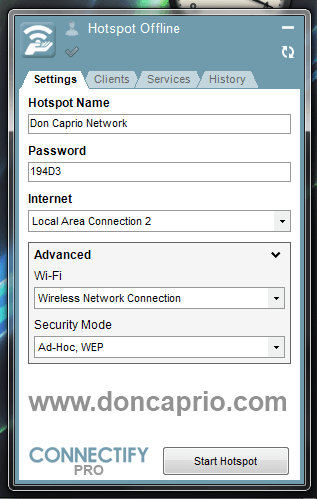
– You must note that the password can only be between 0-9 and A-F.
– Click on Start Hotspot and search for your this network with another phone or any other computer around.
– Simply connect and input the WEP Key you set up earlier and you’re connected. Check out my phone’s screenshot below:
 It’s as easy as that! Now you’re sharing your computer’s internet connection with your mobile phone. If there’s any unauthorized person connected to your network, you can easily detect and disconnect them by checking the Clients tab:
 That’s my iPhone conected. Don’t get me wrong, this isn’t just for sharing your computer’s network connection with your mobile phone only, you can use it to share your connection with any wireless enabled device without much knowledge in networking. Cool, huh? 😉