

iOS has quite a lot of annoyances due to Apple’s hard-to-understand way of doing things. One of these is the lack of a file system that integrates with apps as seen on Android OS. Uploading contents websites from your browser is limited to photos in your gallery and files in your cloud storage accounts. You can’t just pick up a local file and upload to a site through the browser, you also can’t select a local file in the middle of composing a mail.
Apple’s cloud-first approach on iOS doesn’t sit well with some of us. Besides, not everyone depends on cloud storage. If you’ve been having issues attaching local files to emails on iOS or having trouble uploading different file types to websites (without using iCloud, Google Drive, etc.), this post explains just how to solve this little annoyance.
There are dozens of file manager apps available for iOS and most of these do great jobs. Apps like iFile, Phone Drive and the rest of them are great, but they still don’t work integrate with browsers and email clients for uploads. You may start a new email with an attachment from within these apps, but they do not work if you are already in the middle of composing an email.
Introducing Documents 5
This isn’t a brand new iOS app, it has been around for quite a while but not everyone knows about it. I’ve tried as many as 10 different file managers for iOS, but Documents 5 is the only one that integrates flawlessly like cloud storage apps. So far, it is the only iOS app that lets me select local files to upload to websites. It’s the only one that also lets you choose a local file as attachment while composing an email.
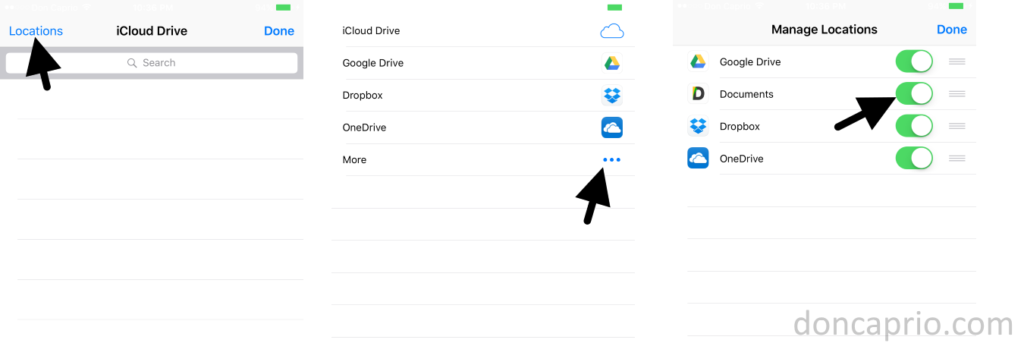
As with other cloud storage apps, you need to enable it too. To do this
- Start composing an email, long press till the context menu appear. Select Add Attachment.
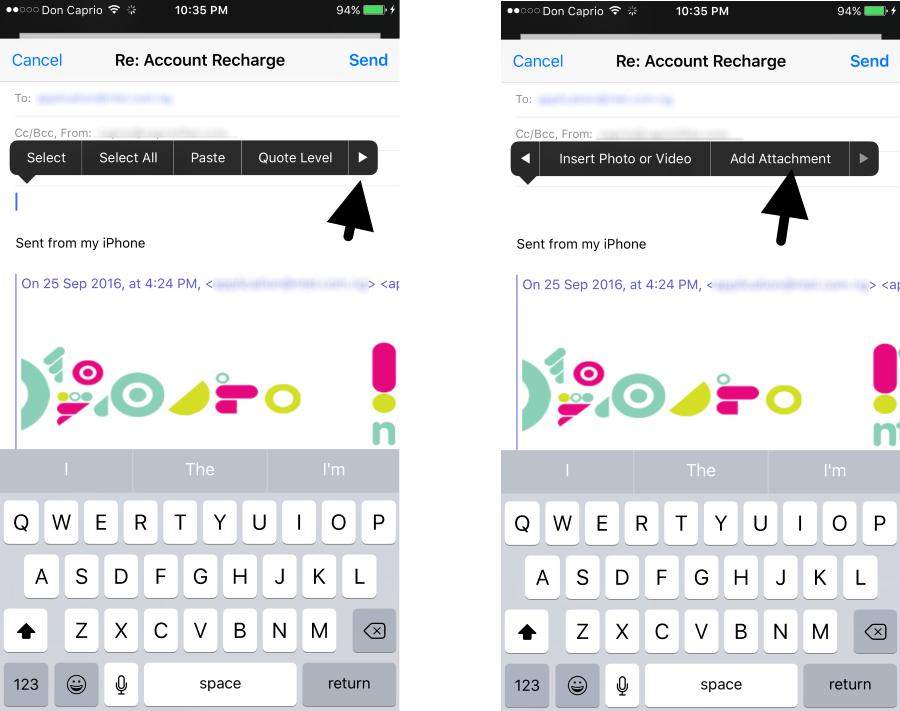
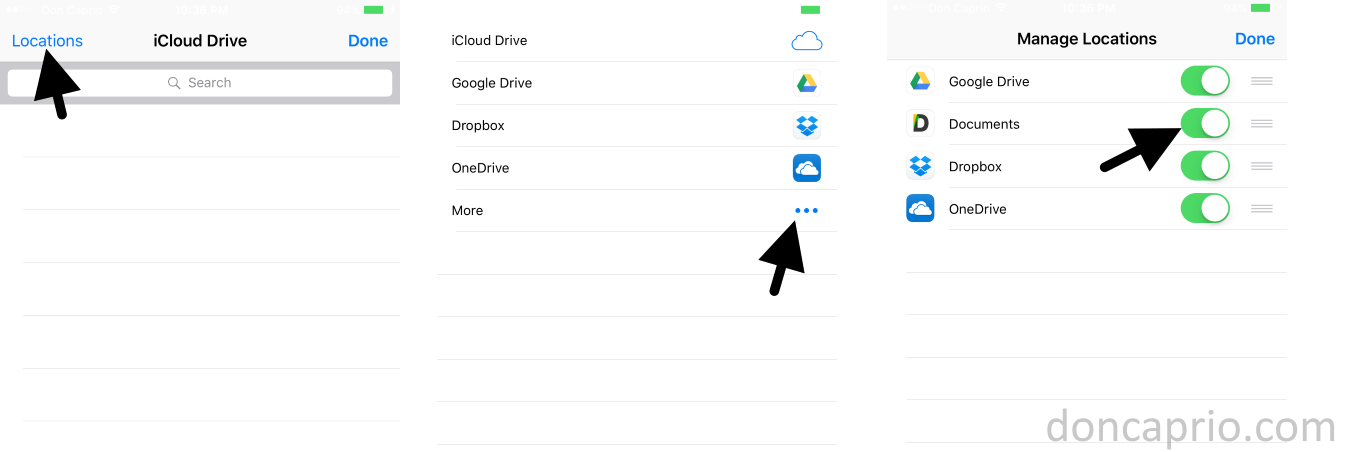
- Click on Locations > More. Enable Documents from here.
Apart from being a great file manager, Document 5 has an in-built web browser that lets you download files from the internet. It can be integrated with popular cloud storage services like Dropbox, Google Drive, OneDrive and Box to sync files. The WebDAV Server feature lets you transfer files between your iOS device and computer.
Saying this is the best iOS file manager ever isn’t far from the truth. It solves a major issue. Managing attachments locally and uploading to the web on the iPhone has never been easier.