

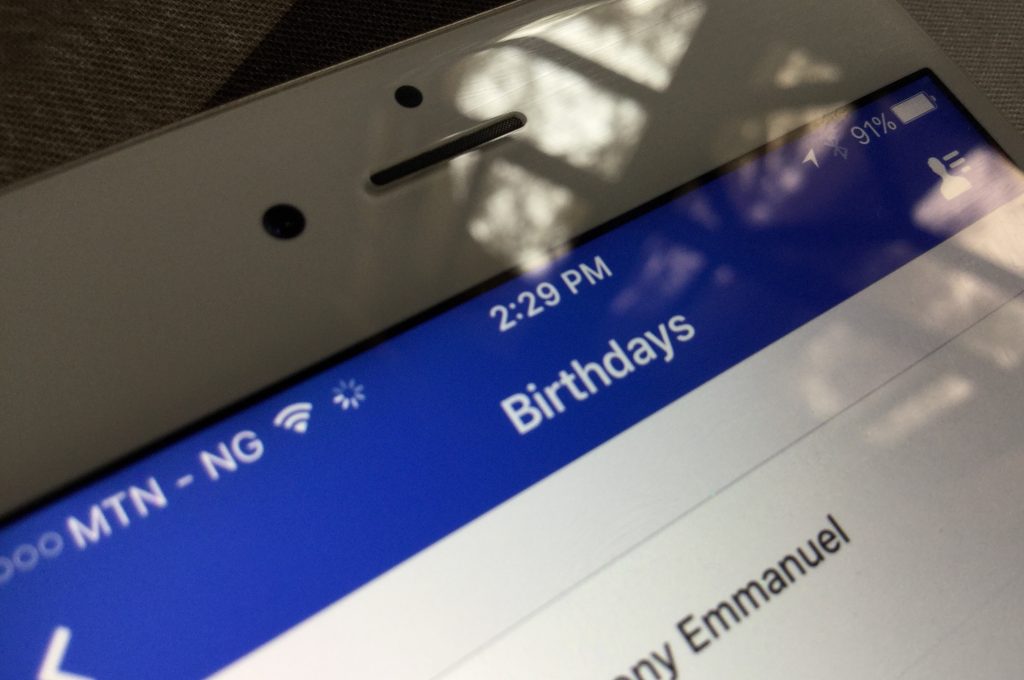
For some of us, Facebook is the reminder that alerts us about important birthdays you probably might have forgotten. There are times when I totally forget birthdays of close friends until I come on Facebook to see the notification. For some of us though, we would prefer to keep our birthdays off Facebook.
If you have thousands of friends, you’re definitely going to get hundreds of posts on your timeline wishing you a happy birthday and private messages you would want to respond to. Then, there’s likely to be one or two dramas about messages or wall posts you forget to acknowledge. To totally avoid this, you can either block everyone from posting on your timeline or simply adjust your Facebook settings not to announce your birthday.
I tried this in January a few days before my birthday, the day came and went without anyone on Facebook knowing about it just the way I had hoped. On the contrary, if you are an attention seeker you probably love all of these “happy birthday” notifications, and if you do you should visit BuzzVoice to buy facebook likes on your posts for even more attention on your birthday or other occasions!
How to stop Facebook from notifying friends about your birthday
If you’re doing this on mobile using the Facebook app, follow these 5 steps:
1. Go to your profile, the tap Edit Profile.
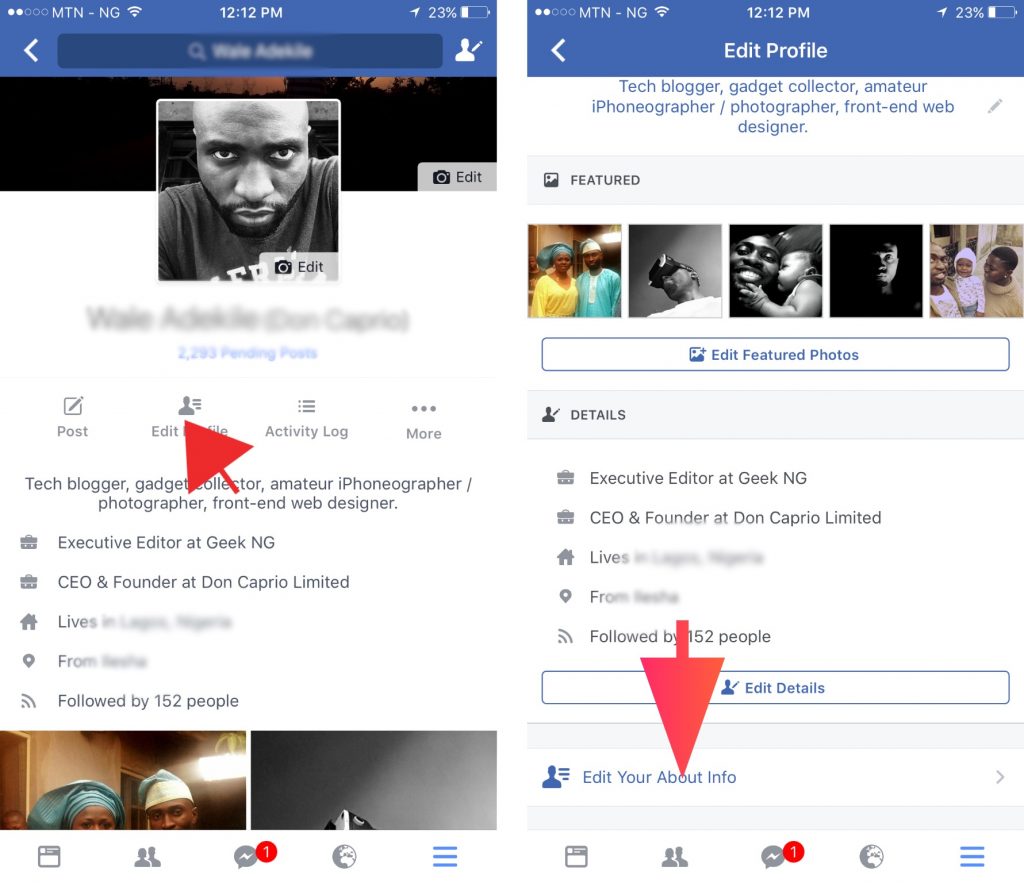
2. Scroll down, locate Edit Your About Info and select this.
3. Scroll down to Basic Info and tap Edit.
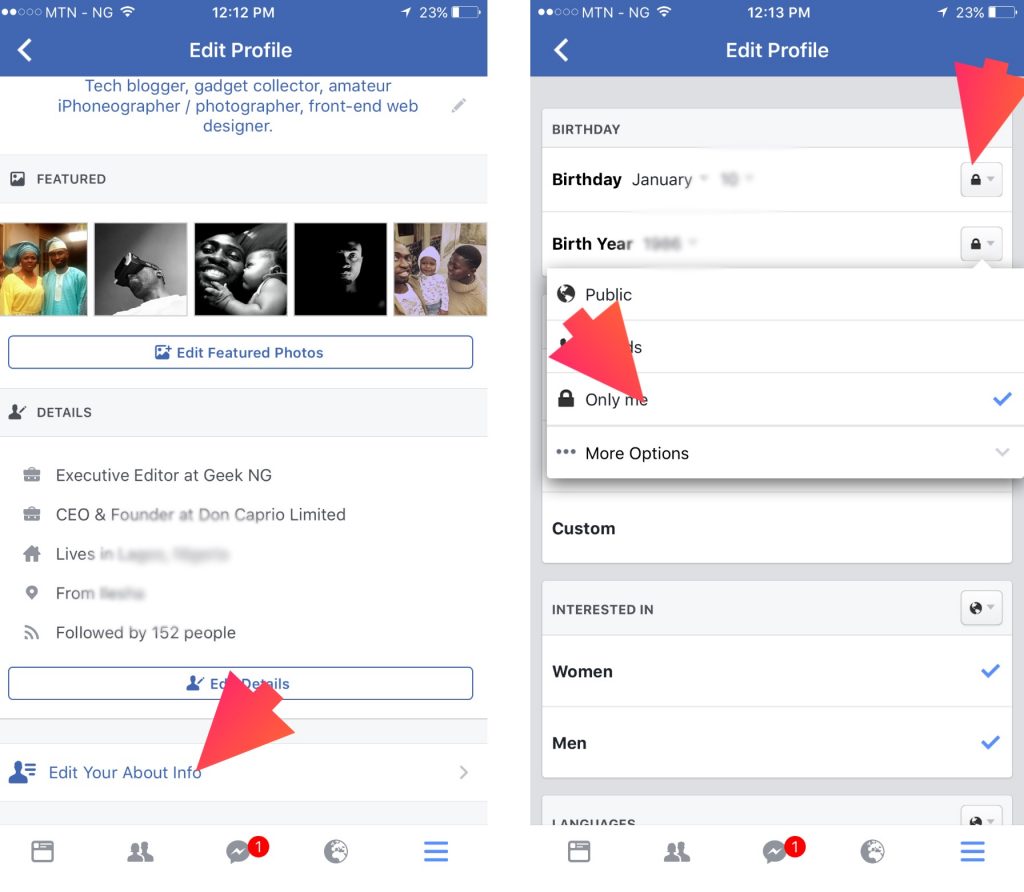 4. Tap the audience selector beside Birthday and set to Only Me.
5. Do the same thing for Birth Year and set to Only Me.
If you’re accessing Facebook from a computer, the process is almost the same.
1. Go to your timeline and click About
2. On the left panel, select Contact and Basic Info

3. One your Birthday and Birth Year, set the audience selector to Only Me.
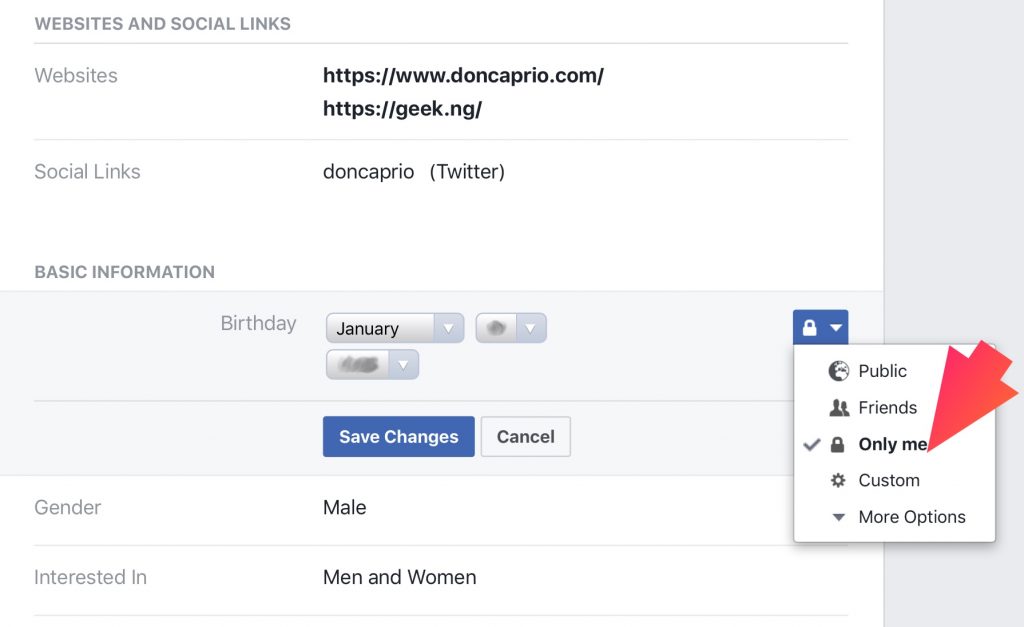
With this done, your birthday should no longer appear on your profile and friends will no longer be notified when your birthday approached.