

For over 5 hours, I’ve been trying to fix a rather strange problem with my Internet connection. I use a certain Android device for hotspot, powering all my other devices. This has been my “router” for over seven months as the battery lasts way longer than my MiFi device. Once in while, perhaps once in a month, the connection stops working. All I need to do if this happens is simply to reset the hotspot settings.
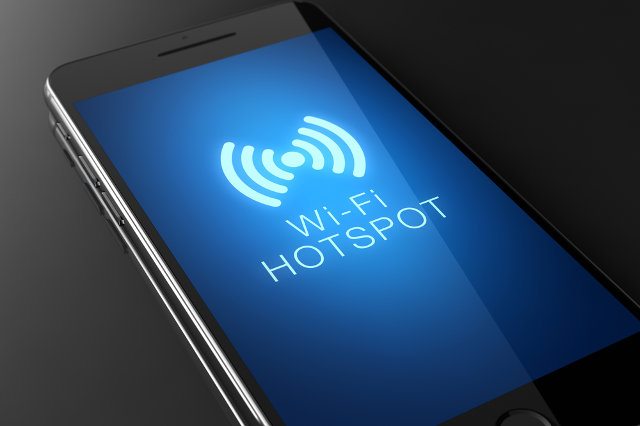
Service providers are known to sometimes block subscribers from tethering, but this has never been the case with Ntel. The hotspot connection stopped working properly on all four connected devices. Only Google, Facebook and a couple of other websites were loading on devices connected via hotspot. Thinking it was the smartphone, I resetted the hotspot settings to default. It still didn’t work.
I went ahead to reset the phone itself, but the problem persisted. A pending firmware update of about 400MB was installed, but the problem remained. When using the regular phone browser, all websites loaded with speed, but these same websites refuse to load on other devices over wireless hotspot.
The simple fix
After doing all I could, I came up with a wild guess and assumed changing the DNS server could solve it. Since a few websites (including Google) were working, I thought using Google’s public DNS might solve it. I was right.
– To change your DNS on macOS, go to Setting > Network.
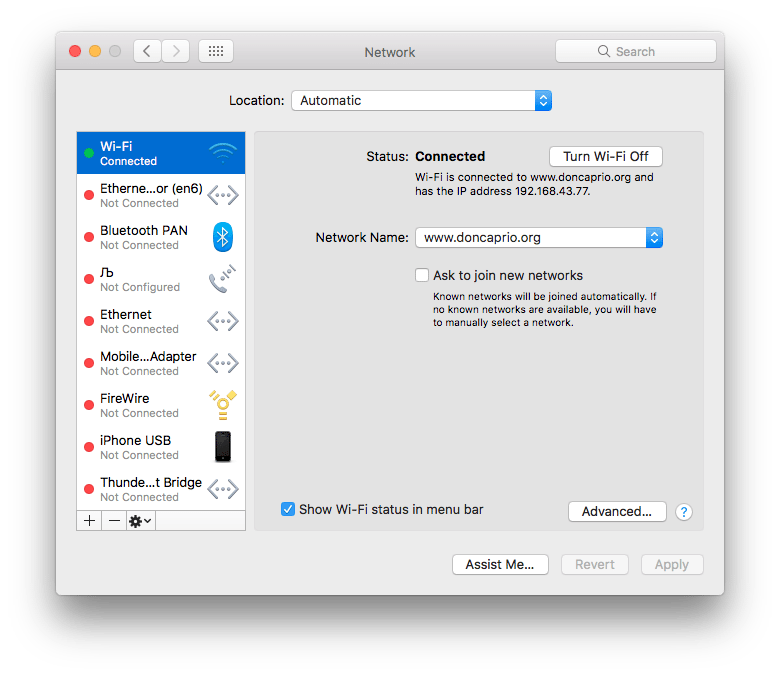 – Select your currently active network connection and click Advanced.
– Go to the DNS tab and delete your existing DNS server.
 – Enter these two:
- 8.8.8.8
- 8.8.4.4
– Click OK and apply the new settings.
This is all I did to get the connection working properly. I had to do this on my iOS devices too. To change the DNS on your iPhone or iPad:
– Go to Settings > WiFi.

– Select your currently active WiFi connection.
– Delete the current DNS server and input 8.8.8.8.