
+321 123 4567
info@test.com
  • Home
  • My Services
    • Web Design
    • Web Development
    • Technical Writing
    • Portfolio
  • My Thoughts
  • Free Tools
    • Photo Editor
    • Avatar Generator
    • Email Migration Tool
    • QR Code Generator
    • RSS to HTML Converter
    • IP Address Geolocation
    • Base64 Image Encoder
    • NATO Translator
    • All Tools
  • Contact
Home
Android
Change the Boring, Default Android Emoji to iOS Emoji

Change the Boring, Default Android Emoji to iOS Emoji

Wale Adekile
September 14, 2015

Back in 2013 when Android KitKat came with a new keyboard with color Emoji, it was a relief as getting Emoji to display on Android devices was not really easy. You either had to install an application to do that or get it done through a hack on rooted devices.


Color Emojis look cool, but almost everyone knows that the default Emoji keyboard on iOS look way better as you can see below.
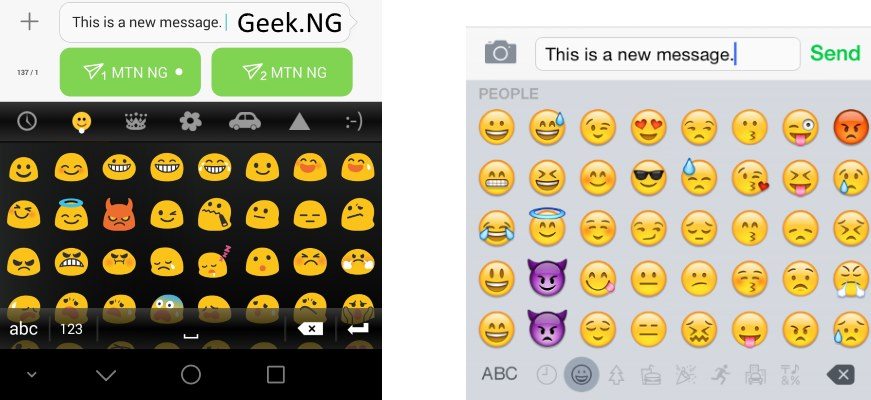
android emoji and iOS emoji

The one on the right shows default Android Kitkat Emojis while the one you see on the left comes with iOS by default.

If you want this type of Emoji keyboard on your Android device, there’s an easy way to do it, you don’t need a third party keyboard to do it. You only need root access and a TTF font you need to put somewhere in your system folder. With ES File Explorer, it’s pretty easy as it’s all explained below.

1 Download and install ES File Explorer. It’s listed as one of the must-have apps for rooted devices here.


2. Download this zip file. It contains the TTF font you would be needing (NotoColorEmoji.ttf).

3. Open ES File Explorer and go to the download location where you have NotoColorEmoji.zip. Extract the content, NotoColorEmoji.ttf

4. Go to Device > system > fonts and rename NotoColorEmoji.ttf to NotoColorEmoji_OLD.ttf. This will allow you to easily revert to the default color Emoji font if anything goes wrong.

5. Now copy the downloaded NotoColorEmoji.ttf you extracted earlier to Device > system > fonts.

6. To make this work, you need to change the properties and edit the permissions as shown below:

change notocoloremoji.ttf permission

Reboot your phone, check your keyboard and you have have the Emoji displayed as it is on iOS.
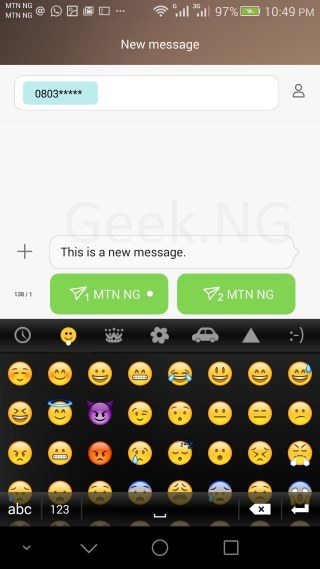

iOS emoji on android

Looks better, right?


Previous Post
Cheap Android Phones in Nigeria Between ₦10,000 to ₦15,000
Next Post
Tecno Mobile Unveils its Latest Flagship, Tecno Phantom 5
Wale Adekile
Husband to the world's most beautiful woman and father to two awesome kids. A nerd, obviously; also, a technical business analyst, a web designer who preaches the gospel of WordPress, and a writer. You can check out my published books on Amazon.
lower screen brightness on android
Android

Dim Your Android Phone Screen Brightness Below Minimum Settings

13 years ago
Tecno Phantom 5
AndroidReview

Tecno Phantom 5: Unboxing Video & First Impressions

11 years ago

Recent Articles

yunmai massage gun mini 2.
Yunmai Massage Gun Mini 2 Review
BenQ LaptopBar Review: The Accessory I didn’t Know I Needed
teendow g20
Teendow Robot Vacuum G20 Review
Yunmai EasePro Massage Gun Review
bathroom
Dear Men, Spraying All Over the Toilet Seat is Disgusting and Irresponsible
winx mediatrans
How to Transfer Photos from iPhone to Computer Without iTunes
How to Use WhatsApp on an iPad
Things to Consider When Buying a MacBook
programmer
Learning to Code: A Comprehensive Guide for Beginners
identity thief
How to Efficiently Prevent Identity Theft

All contents on this blog are copyright protected and cannot be reproduced on other websites without permission.

Copyright © 2022 – NerdieDad | Home | Contact | About | Privacy Policy