


For some months now, I’ve learned to cope with my Huawei Honor 6 Plus switching from EDGE to WCDMA once in a while. It’s not a regular thing so I’ve never given it much thought.
Over the last few days, I was in a location where the network reception was so bad my phone was switching from 3G to 2G like every now and then. There are times when the only way to stabilize your reception is by sticking with just WCDMA only but there’s no way to force 3G in the settings like you have it on some Android devices:
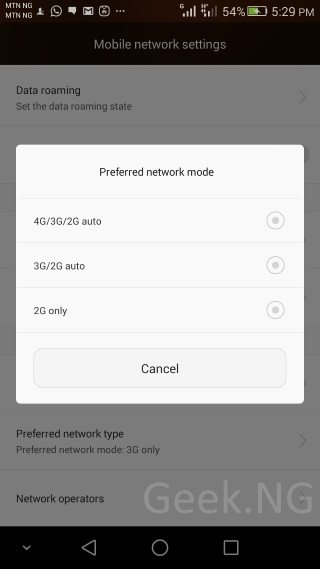
On other phones, you should have a “3G only” option here. I think there’s an app to do this at the Play Store but I personally don’t like installing apps for what I can manually achieve. If yours is just like this, you can use either of this codes to enter the info menu:
- *#*#4636#*#*
- *#*#2846579#*#*
Both codes doesn’t work on all phones. The first code worked on a Tecno Phantom Z and the second one didn’t. On my Huawei honor 6 Plus, the second code worked but the first didn’t.
Using the first option:
- Type *#*#4636#*#* using your dialer and you should be presented with a menu.
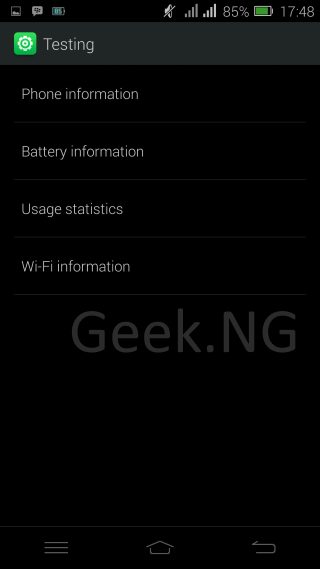
- From there, go to Phone information, scroll down and you should see a drop down menu where you can choose WCDMA only.
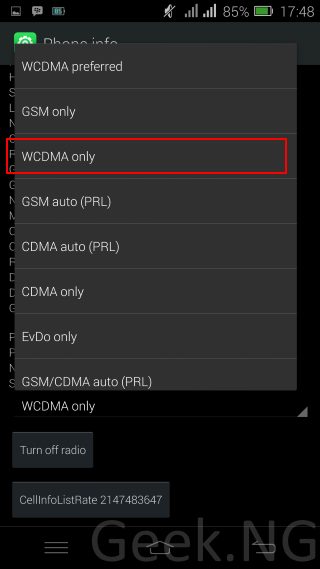 After selecting, the option, go back and it’s all done. It’s as easy as that.
Using the second option:
If the the first code isn’t working, you can always try the second one.
- Type *#*#2846579#*#* using your dialer and you should be presented with a menu. Select ProjectMenu.

- From here, go to Network Setting, then Network Mode.
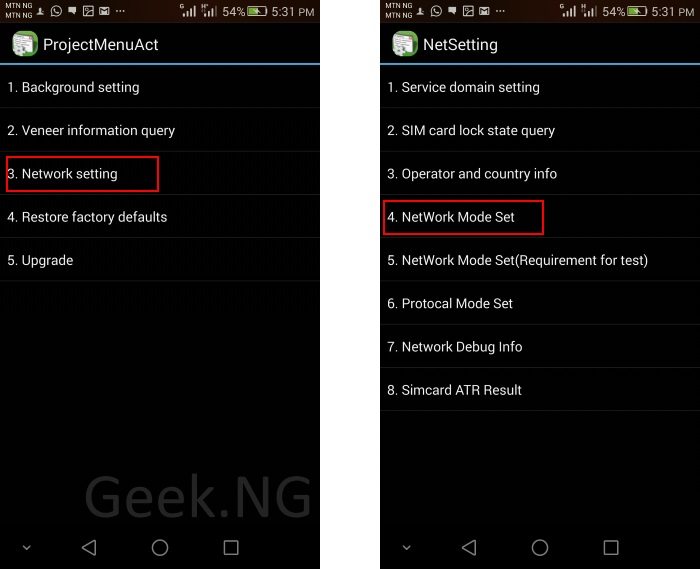
- Select 3G only and confirm your selecting.
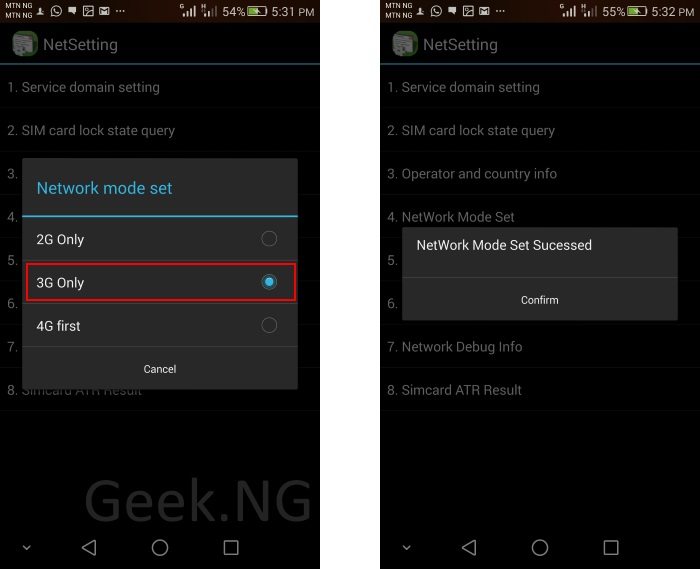
With this done, the phone should always stay on 3G. You should note that your won’t get any network signal in an area with no 3G service at all.












 on an Android Device)
 on an Android Device&description=&image=https://doncaprio.com/wp-content/uploads/2015/08/3g-network.jpg)